- ⌘TNew tab
- ⇧⌘SOpen in the other pane
- ⇧⌘PRun any command
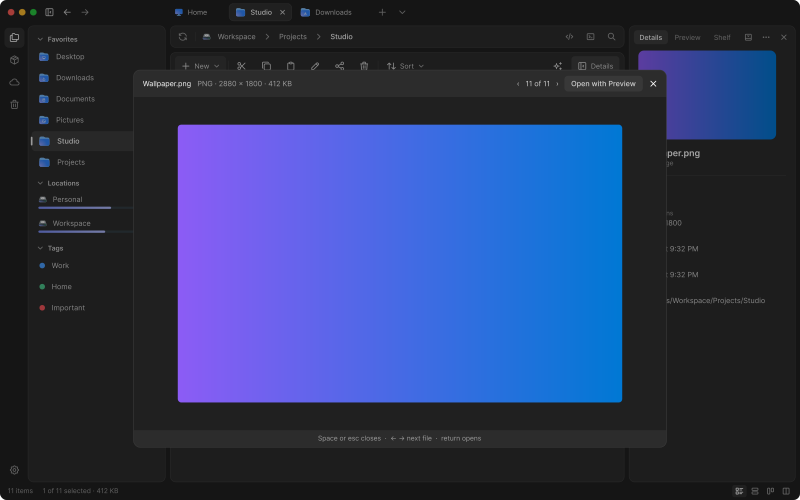
- SpaceQuick Look
- ⇧⌘GGo to folder
- F2Rename in place
- ⌘ESee inside every subfolder
- ⌘ZUndo a whole move
command palette
Every action has a name.
One key opens it and typing narrows it. Extensions add their commands to the same list.
An animation of the command palette: typing a few letters narrows the app's commands, and Enter runs the highlighted one.
✦ ai assistant
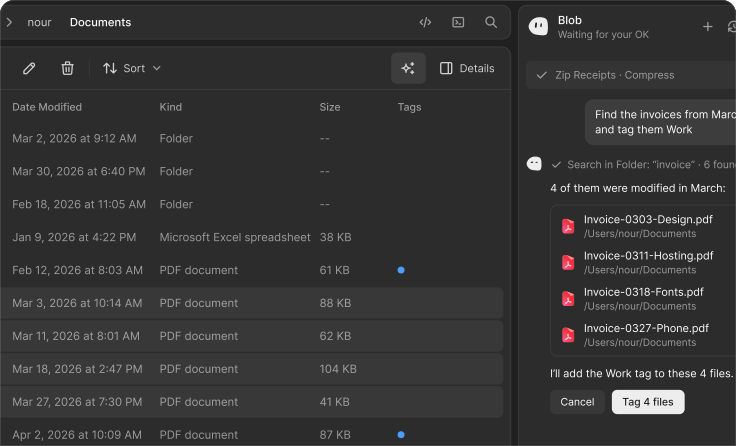
Say what you want. Blob will do it.
Tell Blob what you need in plain words, like “tag March’s invoices Work”. It uses the app’s own commands, shows you the files, and changes nothing until you press the button.
- thinking
- found it
- waiting for your OK
open with ✦ next to Details
extensions
Extend every part of it.
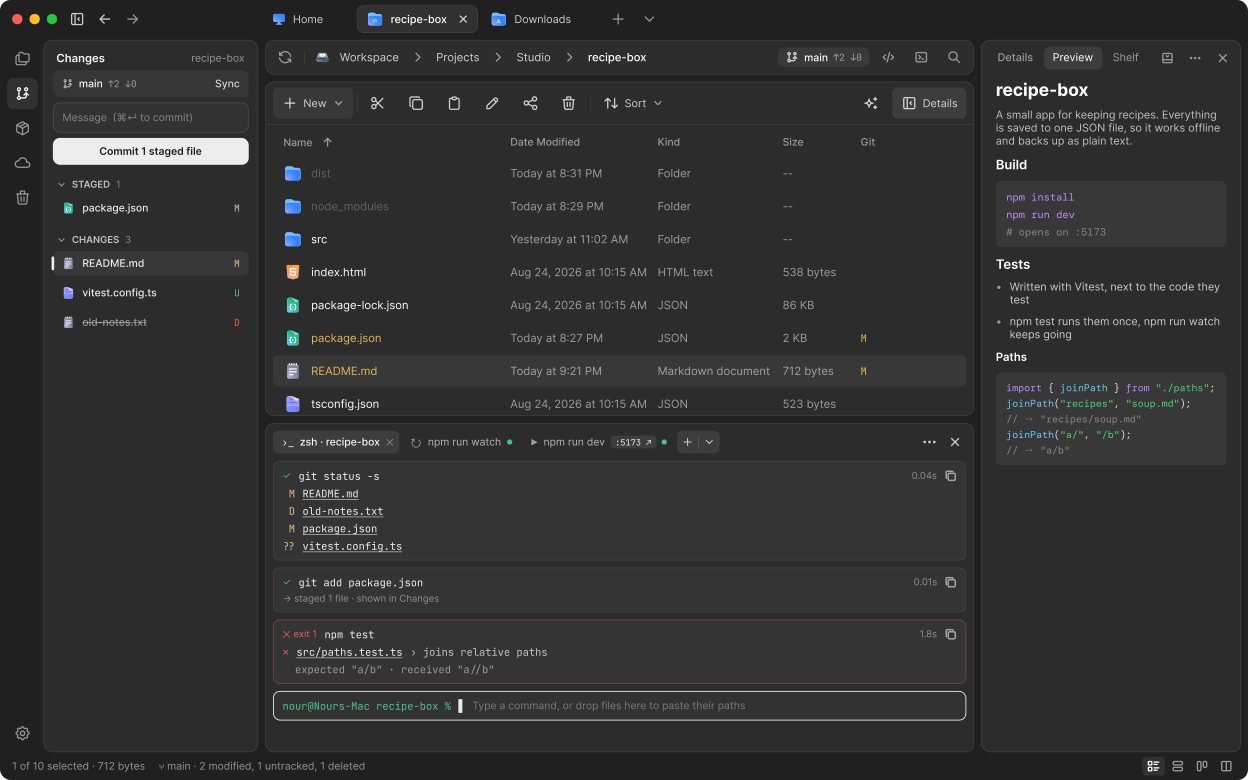
Terminal is an extension. Your extension can add a toolbar button that opens its own left, right or bottom panel, and preview file types Ostio Files doesn't know yet.
- 01left panele.g. Changes from Git
- 02toolbare.g. the branch chip
- 03content panele.g. a Git status column
- 04bottom panele.g. Terminal
- 05right panele.g. Markdown preview
built in
Already in the box.
The small things that make everyday file work easier.
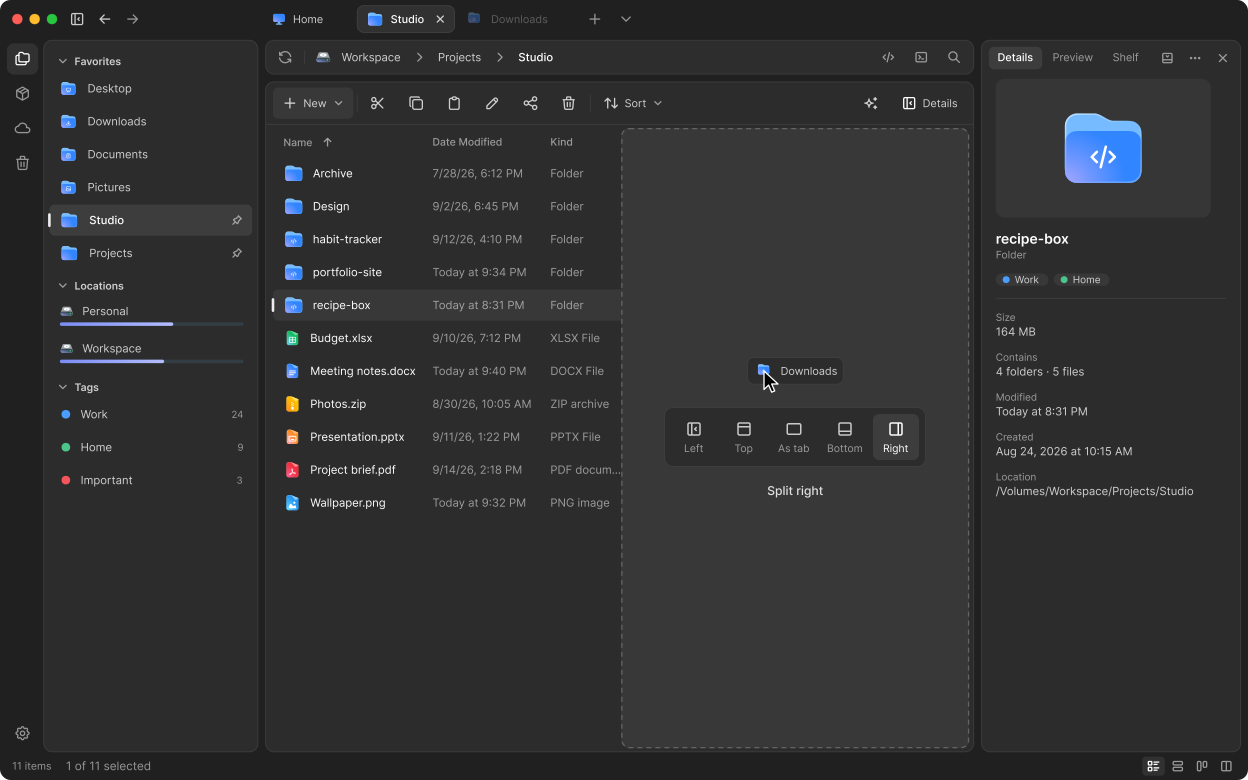
01 · split view
Two folders, side by side.
Drag a tab or a folder onto the window and drop it left, right, above or below to open it in a second pane.
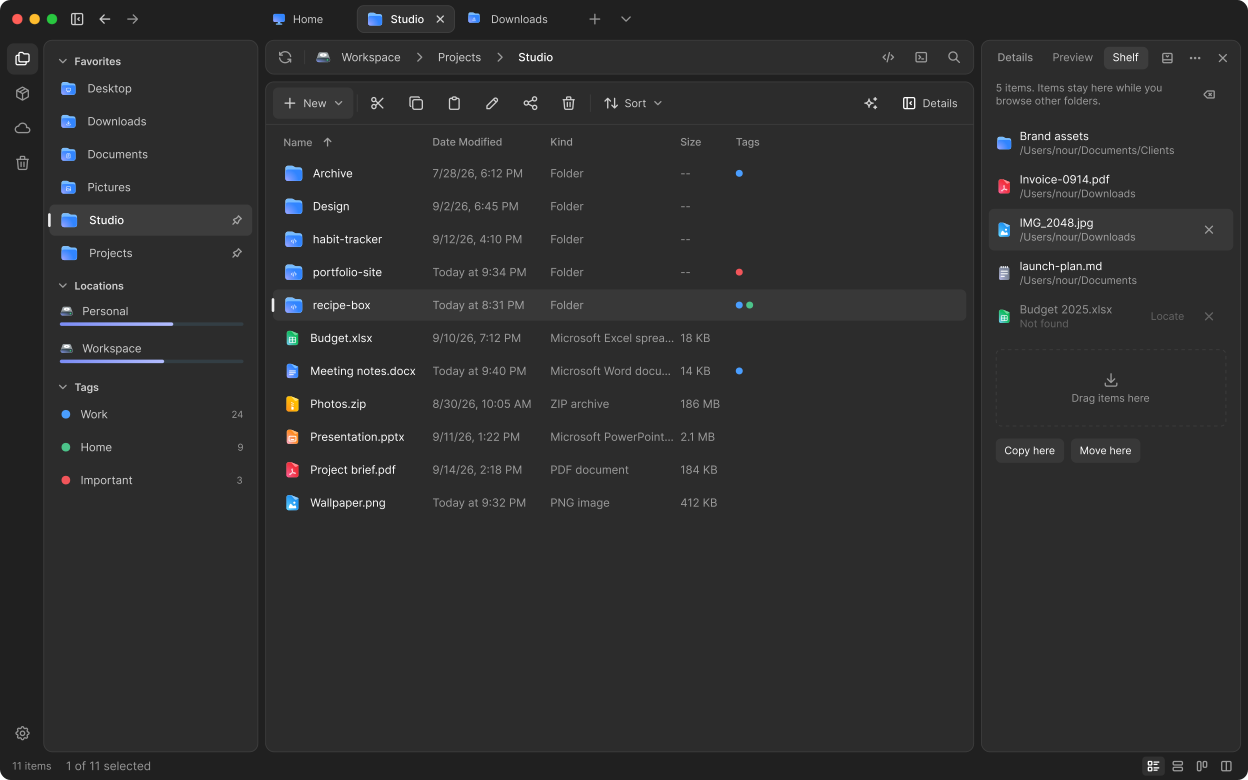
02 · shelf
Gather files from anywhere.
Drop files on the Shelf as you browse. When you reach the folder they belong in, copy or move them all at once.
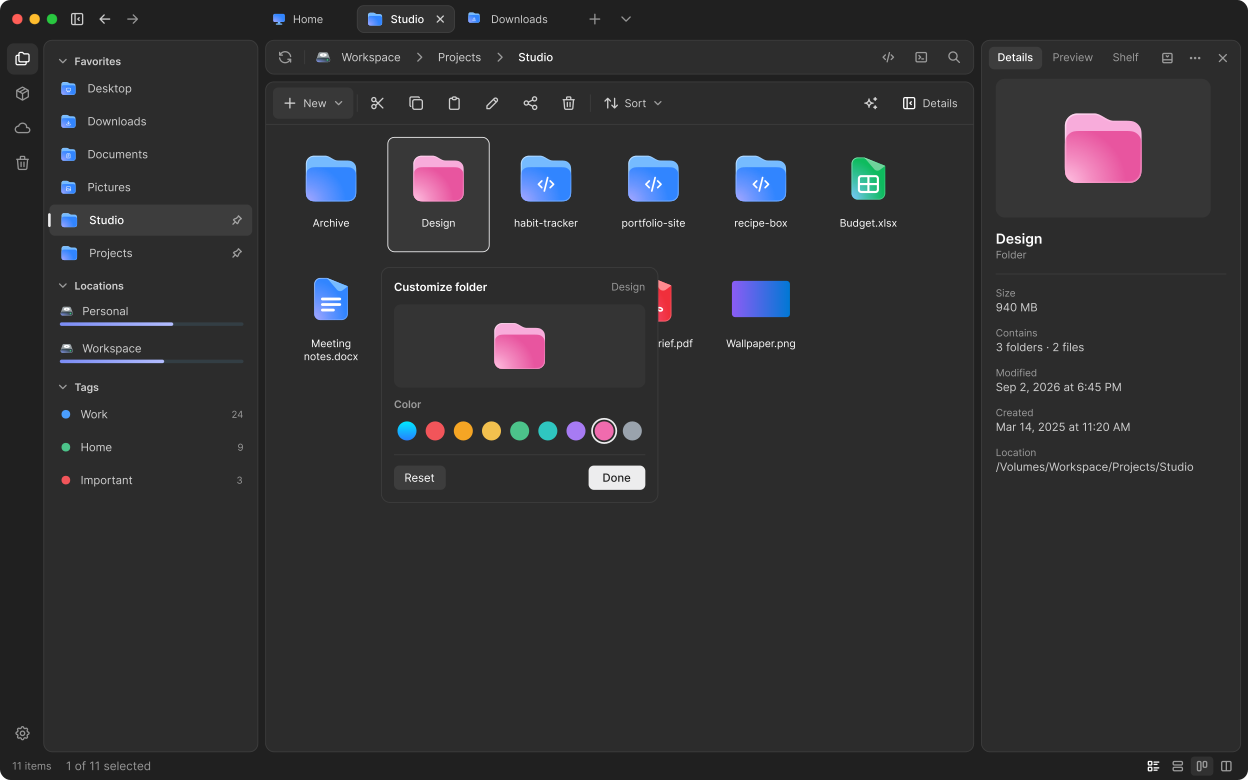
03 · folder colors
Folders you can tell apart.
Give a folder a color, so the one you need stands out in every view.
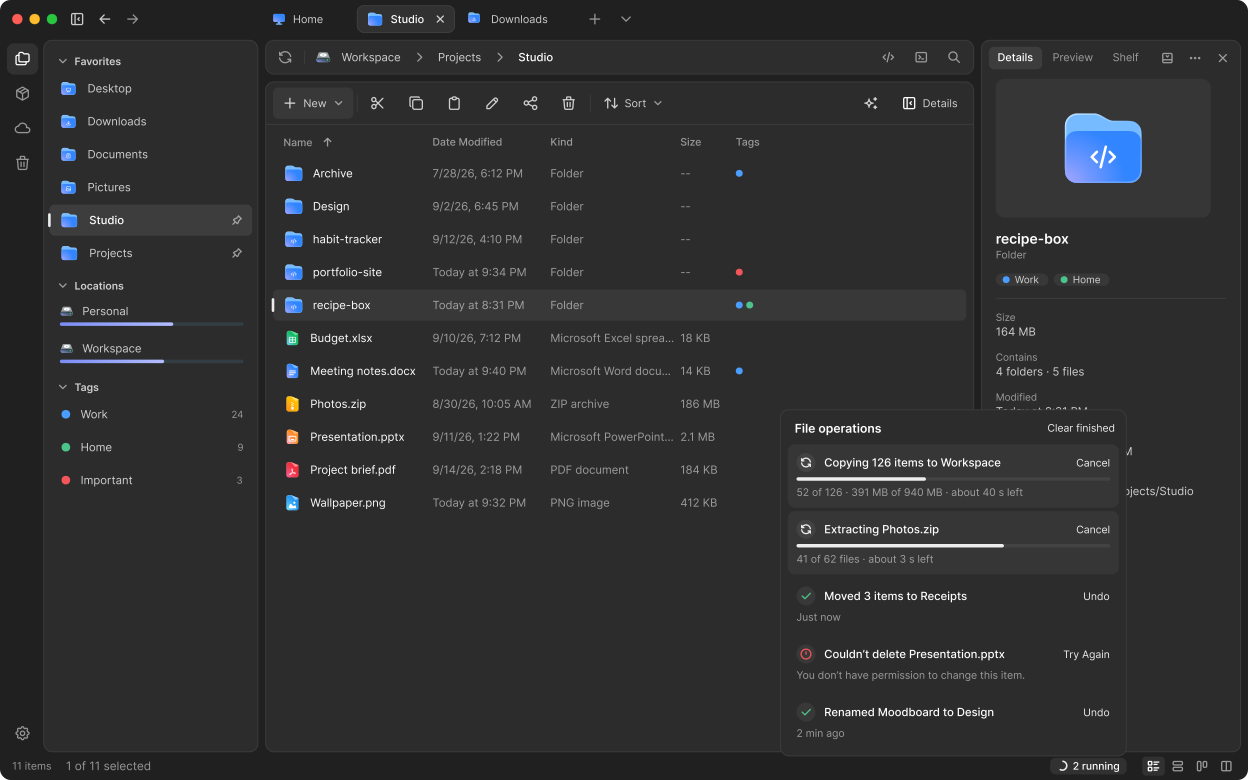
04 · status center
Every copy, in one place.
Copies, moves and extractions run in the background. Cancel one, retry what failed, undo a move or a rename.
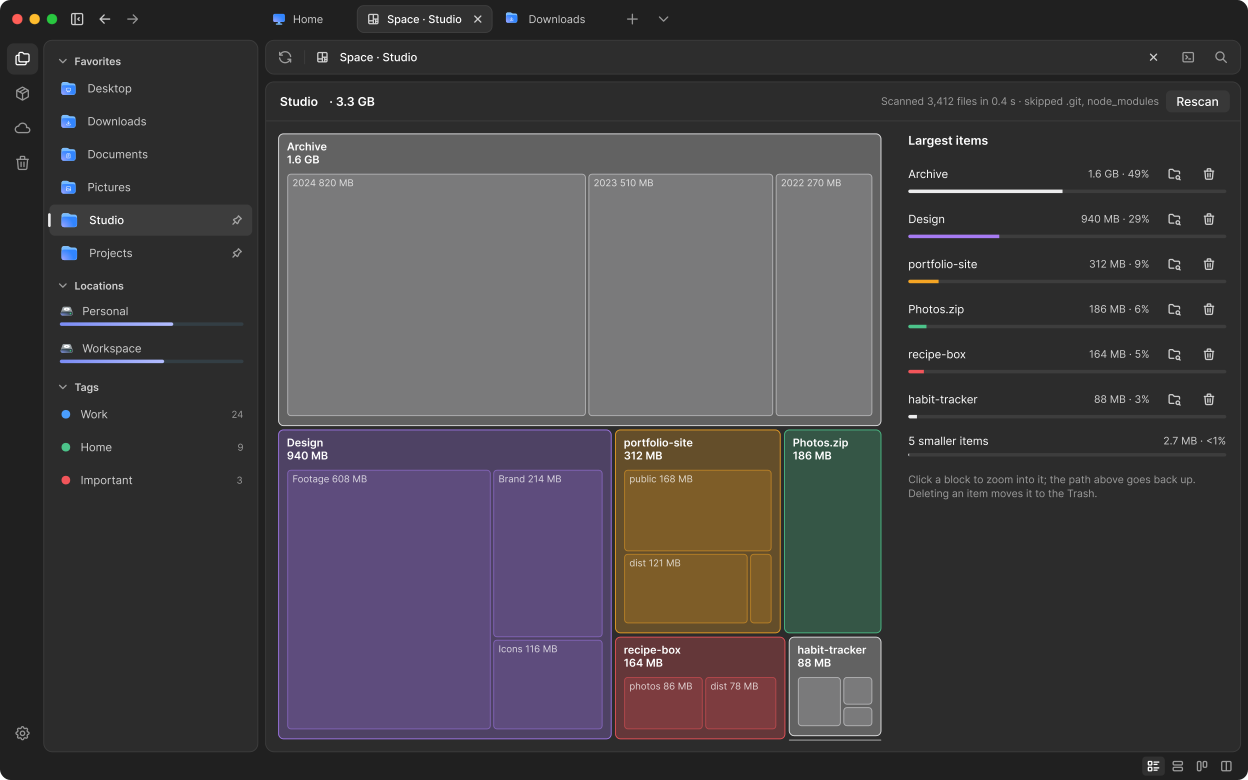
05 · disk usage
See what fills the drive.
Open any folder as a map of what takes the space. Click a block to go inside it, and clear out what you no longer need from the list.
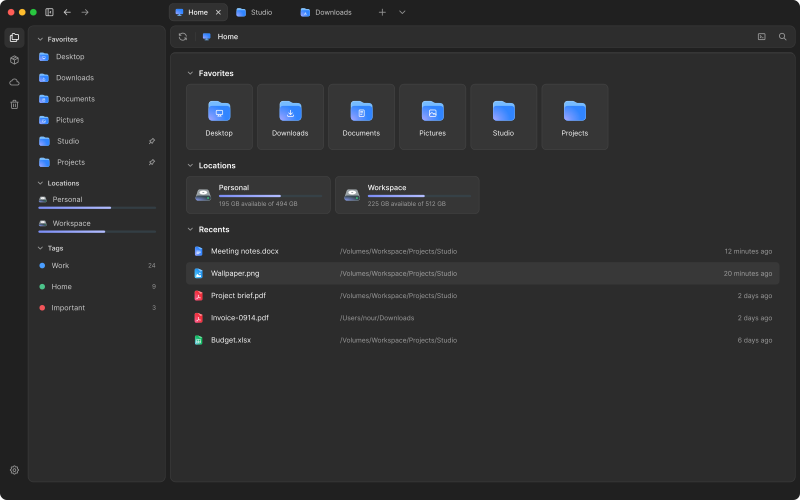
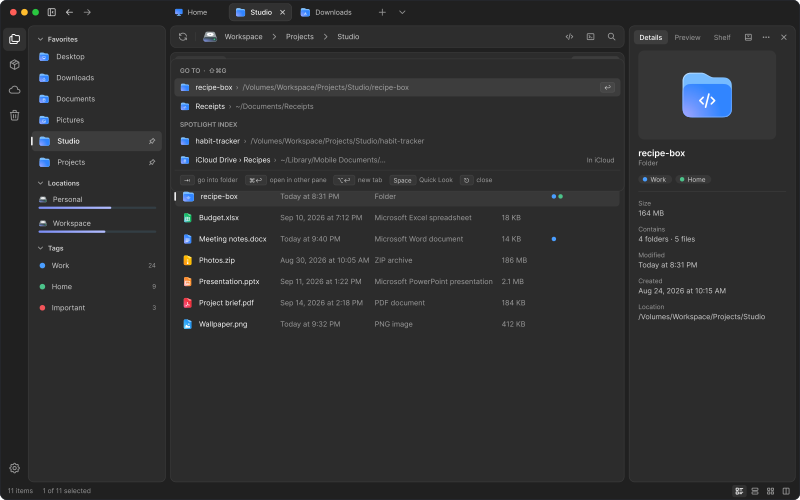
walkthrough
One task, start to finish.
Find a file, look at it, change your mind. Four keys, and you already know them from the Mac.
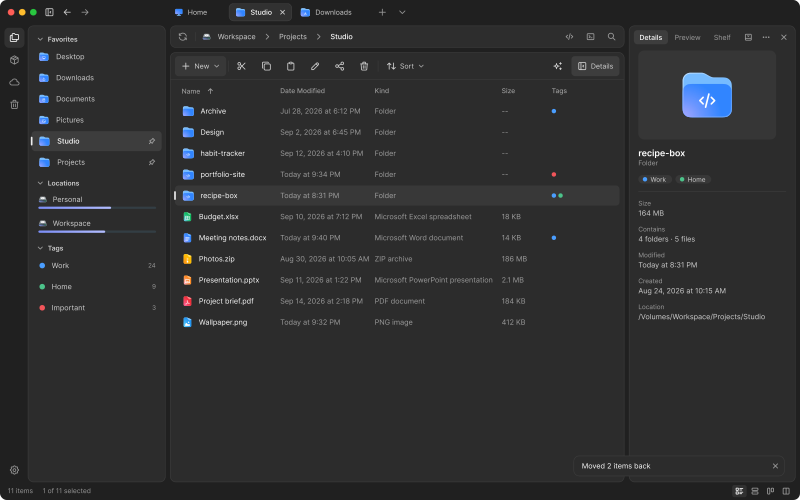
copy path
Paths, the way
you paste them.
Right-click any file and copy its path as you need it: the full path or relative to the project. No retyping, no fixing spaces.
Copy path · right-click or Option-Command-C
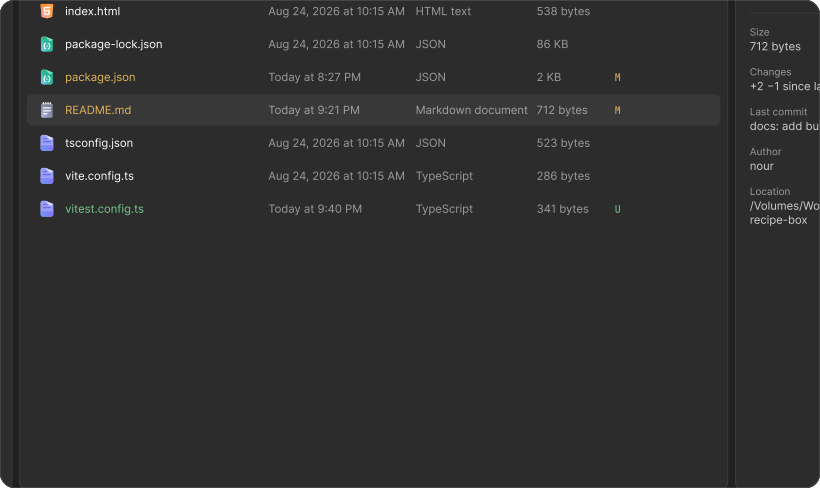
and more
Much more, waiting for you.
A few of the things you’ll find as you go.
- Tags
- Four layouts
- All files in subfolders
- Saved searches
- Reopen closed tabs
- Show hidden items
- Folders first
- Pin to sidebar
- Group by
- Invert selection
- Zips as folders
- Compress and extract
- Compare folders
- Free up cloud space
- Symbolic and hard links
- New empty file
- Open in a new window
- File properties
- Network drives
- Eject
- Restore deleted files
- Light and dark
- Settings as a file
- Open in your editor
- Open in Terminal
- Open with any app
- Rotate images
- Set as desktop picture
Get in early.
Confirm by email, and we write when it's ready.